

WordPress 6.9 “Gene” put the Abilities API into core on December 2, 2025, and WordPress 7.0 followed it in May 2026 with the AI Client, the piece that lets a site talk outward to an AI provider. We already walked through what each of those building blocks does on its own, without touching a single line of setup. This time we are wiring the third piece to an actual AI agent: the official MCP Adapter, the bridge that turns a WordPress Ability into something Claude Desktop, or any other Model Context Protocol client, can call directly. Let’s set one up together, end to end.
Where this picks up: from concept to configuration
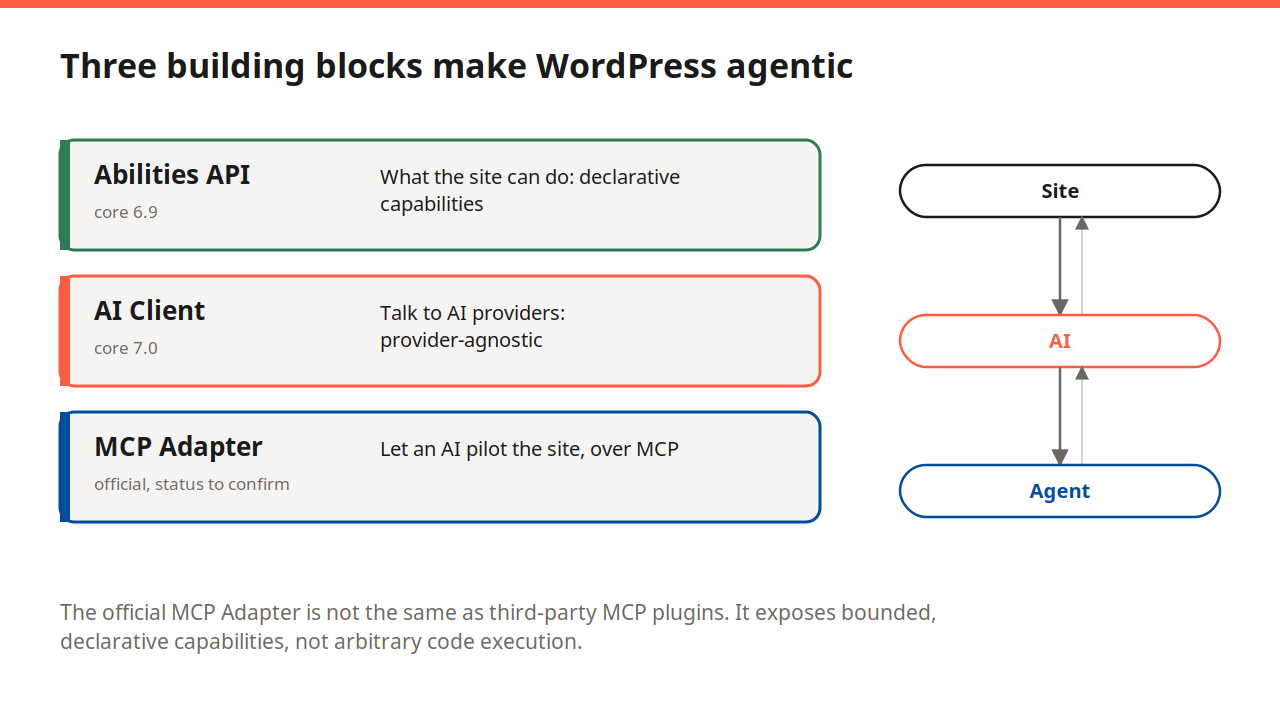
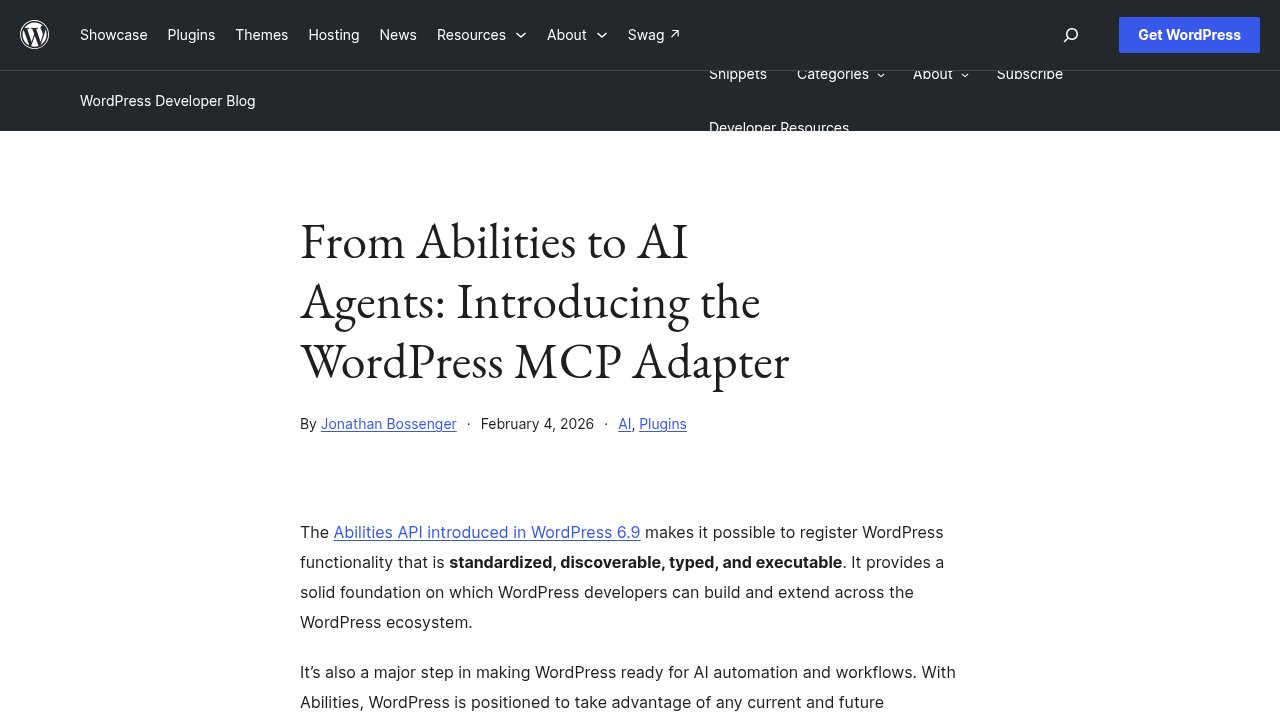
An ability is a small, declared unit of capability, something like “get the site’s public info” or “list published posts,” with a defined input, a defined output, and a permission check attached to it. The MCP Adapter, formally introduced on the WordPress Developer Blog on February 4, 2026 by Jonathan Bossenger, does one job: it translates those abilities into Model Context Protocol tools and resources, so any MCP-compatible AI application can discover and call them the same way it would call a tool on any other MCP server. The adapter itself has existed as a project since July 17, 2025; the February post is what moved it from “something core contributors were building” to “something you can install today.”
What your WordPress site needs before you start
You need WordPress 6.9 “Gene” or newer. The Abilities API ships inside WordPress core from that version on, so there is no separate plugin to hunt down for it. If your site still runs 6.8 or earlier, this whole guide is a good reason to plan that update first; there is no partial or backported version of the Abilities API for older releases.
One correction worth making here, since it is easy to misread from older coverage: the separate Enable Abilities for MCP plugin is not a legacy stopgap for pre-6.9 sites, and it has not been archived. As of this week it is still actively maintained, requires WordPress 6.9 or later itself, and adds an admin screen to toggle roughly 85 pre-built content abilities on or off, on top of what core already exposes. It is optional. You do not need it to follow this guide, but if you eventually want a point-and-click way to control which abilities are exposed without touching code, it is worth knowing it exists and is current.
Getting the official MCP Adapter running
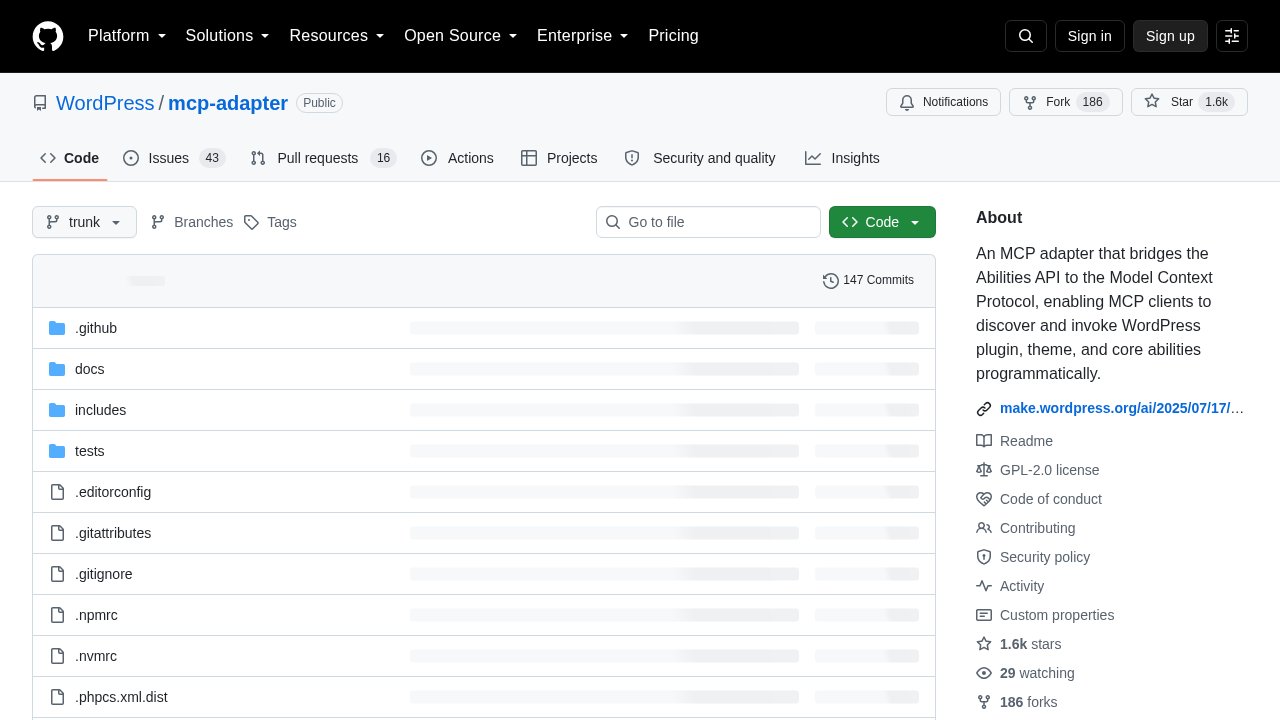
The adapter ships from the official WordPress/mcp-adapter GitHub repository, requires PHP 7.4 or higher, and installs like a normal plugin:
wp plugin install https://github.com/WordPress/mcp-adapter/releases/latest/download/mcp-adapter.zip --activateIf you are building a custom server or plugin around it instead, the Packagist package is the one to require, currently at version 0.6.1:
composer require wordpress/mcp-adapterOnce it is active, the plugin exposes a default MCP server at /wp-json/mcp/mcp-adapter-default-server, already carrying three built-in abilities: core/get-site-info, core/get-user-info, and core/get-environment-info. Those three are enough to confirm the whole chain works before you write any custom code.
Writing your first custom ability
A custom ability is registered with wp_register_ability(), the same function any plugin would use, hooked into WordPress the way you would register a REST route or a custom post type:
wp_register_ability( 'wp-premiums/latest-post-title', array(
    'label'               => 'Get latest post title',
    'description'         => 'Returns the title of the most recently published post.',
    'category'            => 'site',
    'input_schema'        => array(
        'type'       => 'object',
        'properties' => array(),
    ),
    'execute_callback'    => function () {
        $latest = get_posts( array( 'numberposts' => 1 ) );
        return array( 'title' => $latest ? $latest[0]->post_title : null );
    },
    'permission_callback' => function () {
        return current_user_can( 'read' );
    },
    'meta'                => array(
        'public' => true,
    ),
) );
Abilities are private by default: nothing you register is reachable over MCP until you explicitly set meta.public (or the more granular meta.mcp.public) to true. That default is a deliberate safety rail, not an oversight, and it is worth keeping in mind before you get to the security section further down.
Testing the endpoint before any agent touches it
Before pointing an AI client at the server, confirm it responds. If you have WP-CLI access, the fastest check runs locally over STDIO and lists every tool the server currently exposes:
echo '{"jsonrpc":"2.0","id":1,"method":"tools/list","params":{}}' | wp mcp-adapter serve --user=admin --server=mcp-adapter-default-serverFor a site reachable over the web, the same server answers HTTP requests, and this is where a tool like Postman earns its keep: build a POST request to your endpoint with an authenticated request header, and you should get the same tool list back in JSON.
curl -X POST "https://yoursite.com/wp-json/mcp/mcp-adapter-default-server"An unauthenticated request should fail here. If it succeeds and hands back data, stop and revisit your permission callbacks before going any further.
Connecting Claude Desktop to your site
For a local WordPress install, the simplest path is STDIO through WP-CLI, configured directly inside Claude Desktop’s developer settings. Open Settings, go to Developer, and edit the configuration for local MCP servers to add an entry along these lines:
{
  "mcpServers": {
    "wordpress-mcp-server": {
      "command": "wp",
      "args": [
        "--path=/path/to/your/wordpress/install",
        "mcp-adapter",
        "serve",
        "--server=mcp-adapter-default-server",
        "--user=admin"
      ]
    }
  }
}
Save the file and restart Claude Desktop, since it only reads MCP server configuration on startup, not while running. Once it restarts, the three default abilities, and any custom one you registered with meta.public set to true, should show up as tools Claude can call in that conversation.
If your site only needs to be reachable remotely rather than from your own machine, the adapter also supports HTTP transport through the @automattic/mcp-wordpress-remote proxy, which requires Node.js on whichever machine is running the connection. That path is worth the extra setup once you are past local testing and want teammates or hosted tools to reach the same server.
What to lock down before you let an agent near your site
None of this bypasses WordPress’s normal permission system, and that is the point worth holding onto. Every ability still runs through its own permission_callback, exactly like any other WordPress action, so an agent authenticated as an editor cannot reach something an editor could not already do through the admin. The mistake to avoid is writing a permission callback that always returns true “to make testing easier” and forgetting to tighten it before anything goes near a live site.
Keep your input_schema narrow and typed rather than accepting a free-text field an agent could stuff with anything. We have covered what happens when an unauthenticated path into WordPress core gets found and chained into something worse; a badly scoped ability is a smaller version of the same category of mistake, just one you are introducing yourself instead of patching after the fact. Start with read-only abilities like the three defaults, add write access one ability at a time, and test the whole thing on staging before an agent gets anywhere near your production database.
Who else is already building on this
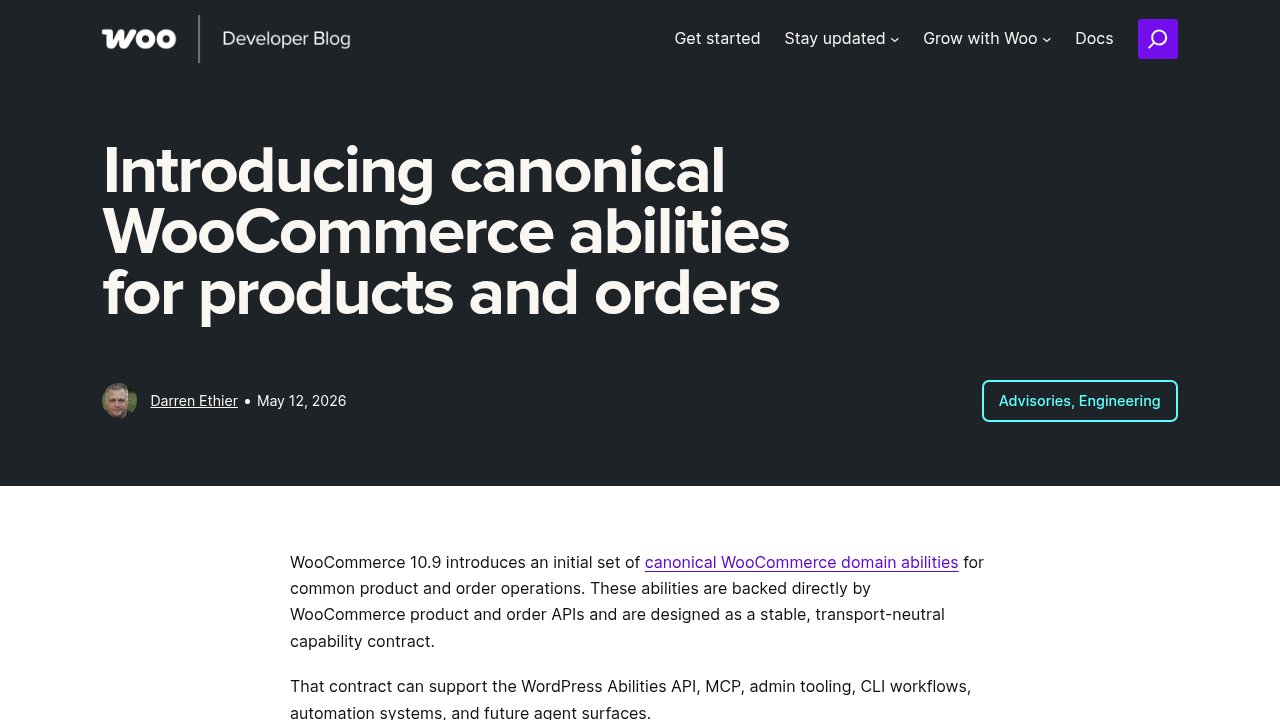
WooCommerce has already shipped its side of this: version 10.9, released June 23, 2026, introduces seven canonical abilities covering product queries, creation, updates and deletion, plus order queries, status updates, and order notes, all built directly on WooCommerce’s own product and order APIs rather than as thin wrappers around REST. Rank Math has done the same on the SEO side: its own documentation walks through connecting an AI assistant such as Claude Desktop or ChatGPT to read a post’s meta description, title, and focus keyword, run a full SEO audit of the site, and fix certain detected issues such as a missing focus keyword, all through the same Abilities API foundation.
Elementor is a step behind on this particular piece: Elementor’s own product page lists Abilities API integration for its Angie assistant as “coming soon” rather than shipped, so if you were expecting Elementor abilities alongside WooCommerce’s and Rank Math’s today, that piece is not there yet.
Our take
An agent that can only see and do what you explicitly registered as abilities is a fundamentally different proposition from handing over an admin password, and that distinction is what makes the whole MCP Adapter worth the half hour of setup. The adapter does not grant an AI agent anything your permission callbacks do not already allow, which means the setup work you put in here is also the security work.
Treat this the way you would any new plugin that talks to the outside world: install it on staging first, start with the read-only defaults, add your own abilities one at a time with a permission callback you have actually tested, and only point a production site at an agent once you trust every ability you have exposed. If you are still mapping how deep this AI layer runs through WordPress Core beyond just this one adapter, our full overview of WordPress Core covers where it fits. Enjoy connecting your first agent!