

We already covered the three building blocks that make WordPress agentic: the Abilities API, the AI Client, and the MCP (Model Context Protocol) Adapter. On September 16, 2026, WPBeginner published a tutorial showing readers how to manage a WordPress site with ChatGPT or Claude using WPVibe, a free plugin that bridges those assistants to a self-hosted site. Three weeks earlier, on August 24, Jonathan Bossenger had already tested the same plugin in a live comparison of WordPress AI tools, and his verdict landed nowhere near WPBeginner’s. Let’s walk through what both of them actually found, together, before you decide whether to connect your own site.
WPBeginner and Jonathan Bossenger are looking at the same plugin
WPVibe connects AI chat clients such as Claude and ChatGPT to a self-hosted WordPress site through MCP. WPBeginner spells it “WPVibe,” Bossenger’s video title spells it “WP Vibe,” and that spelling wobble is the only thing that was ever in question: both point to the same product: the server domain mcp.wpvibe.ai shows up in WPBeginner’s tutorial, and the same three plugins under test (WPVibe, Cross AI MCP Manager, Albert) show up in independent recaps of Bossenger’s comparison. In his comparison, Bossenger put three viewer-suggested plugins through the same test: can you set it up without reading the docs, can you connect it to a local site, and can you tell what data it sends outside your server. Cross AI MCP Manager, a self-hosted server, was the only one of the three that worked end to end after real troubleshooting. Albert would not connect to a local site at all. WPVibe connected without trouble, but Bossenger’s own criteria flagged it for the same reason WPBeginner’s tutorial never mentions: it routes every request through a server WPVibe runs, not one you control.
What both reviews actually agree on
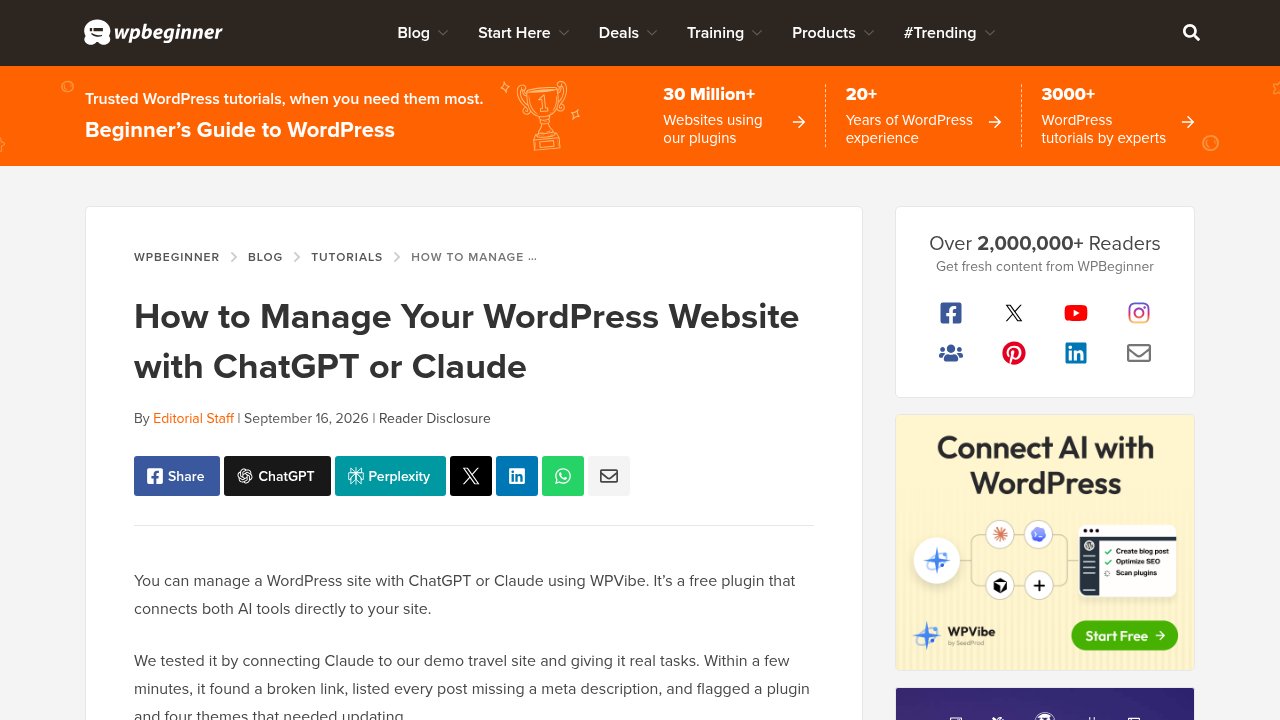
Strip away the verdicts and the two pieces of coverage describe the exact same mechanics. To connect a site, WPBeginner’s instructions are to “paste https://mcp.wpvibe.ai/mcp into the ‘Remote MCP server URL’ field” inside Claude or ChatGPT. Before that step, you sign in on the wpvibe.ai website with your email and a six-digit code, then copy an authorization prompt from your own WordPress dashboard into the chat client and approve it there. The connection itself runs on Application Passwords, a standard WordPress core feature that grants API access at whatever permission level the account it’s attached to already has. The MCP server that receives every one of those requests lives on WPVibe’s own infrastructure, not on the WordPress site itself, relaying a broad set of tools covering content, media, themes, and WP-CLI between the assistant and your install. Usage is capped too: 100 tool calls a day on the free plan, 500 a day on the $99-a-year Pro plan. None of this is contested between the two sources. It is simply described very differently.
Why one review flags the setup and the other doesn’t
WPBeginner’s tutorial is not careless about safety. It tells readers to give WPVibe “its own WordPress user account,” to use an Editor role for content work rather than an administrator, to “read exactly what it will do before you confirm any approval,” to check the WPVibe approval log after a session, and to take a backup before the first real run. That is genuine, specific caution about what the assistant does once it’s connected. Nothing in the tutorial, at any point, identifies the third-party server standing between the assistant and the site as something worth weighing before you connect it in the first place. It is presented purely as a setup step, a URL to paste, not a decision.
Bossenger’s test was built around exactly that question: what does the traffic do before it reaches your site. Judged against a self-hosted option like Cross AI MCP Manager, a vendor-hosted relay looks disqualifying by design, whatever else the plugin gets right. One more detail is worth knowing, and it doesn’t accuse either side of anything: WPVibe is built by SeedProd, and SeedProd has been part of Awesome Motive since October 2018, the same company that runs WPBeginner. That doesn’t make WPBeginner’s steps inaccurate, and a tutorial’s job was never the same as an audit’s. It does mean the September 16 write-up is closer to a company introducing its own product than to independent coverage stumbling onto it, which is exactly the kind of context a tutorial has no obligation to spell out and an audit is built to surface.
The question to ask before you connect any WordPress AI plugin

This is not a niche tool either way: as of this week, WPVibe’s WordPress.org listing shows more than 40,000 active installs and a full 5-star average across 61 reviews, a plugin-side count anyone can leave regardless of who owns the company behind it. Ask where the request goes before you ask whether the assistant answers fast, and the same short checklist applies to WPVibe or to the next AI-bridge plugin that shows up in your dashboard next month:
- Does the assistant talk to your site directly, or through a server the vendor operates?
- Which WordPress account, and which role, will the Application Password be attached to?
- What happens to that access if the vendor changes its pricing, its ownership, or shuts the service down?
- Is the write-up recommending the tool also disclosing who makes it?
Our take
WPVibe works exactly as WPBeginner describes it, and Bossenger’s comparison doesn’t contradict a single fact in that description. THE question worth asking was never whether WPVibe works. It’s who is standing between your site and the assistant answering it, and that question only comes up if you go looking for it. Before you connect a WordPress AI plugin of any kind, create the limited account you would hand to someone you don’t fully trust yet, not the one you log in with yourself, and you keep most of the benefit while giving up far less. If you would rather keep that connection entirely on infrastructure you control, our step-by-step guide to the official, self-hosted MCP Adapter walks through setting that up yourself. Either way, read the approval before you click it.